From sign-up to payday.

Twelve steps, about three minutes. Real app screens, with a made-up promotion.

Seen enough? Add your event now

Set up your promotion

Tap Become a Promoter in the app menu. The setup wizard takes you through your account, your promotion and your first venue, one screen at a time.
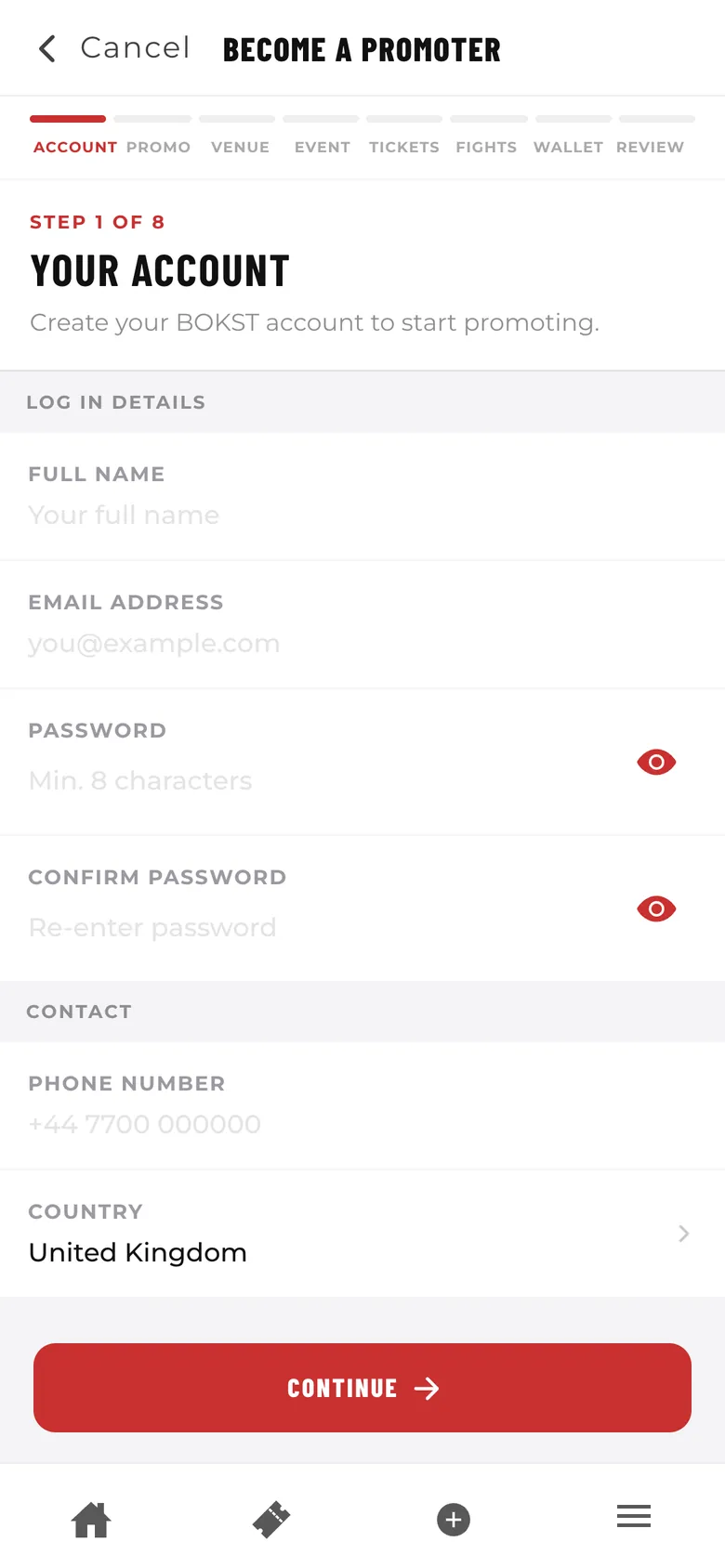
The Become a Promoter wizard on step 1 of 8, Your Account
  • Stripe is how money reaches your bank. You can pick Set up later and still publish, but your earnings wait until your wallet is connected.

More detail
  • Tickets and fights can be skipped and added later.
Create your event

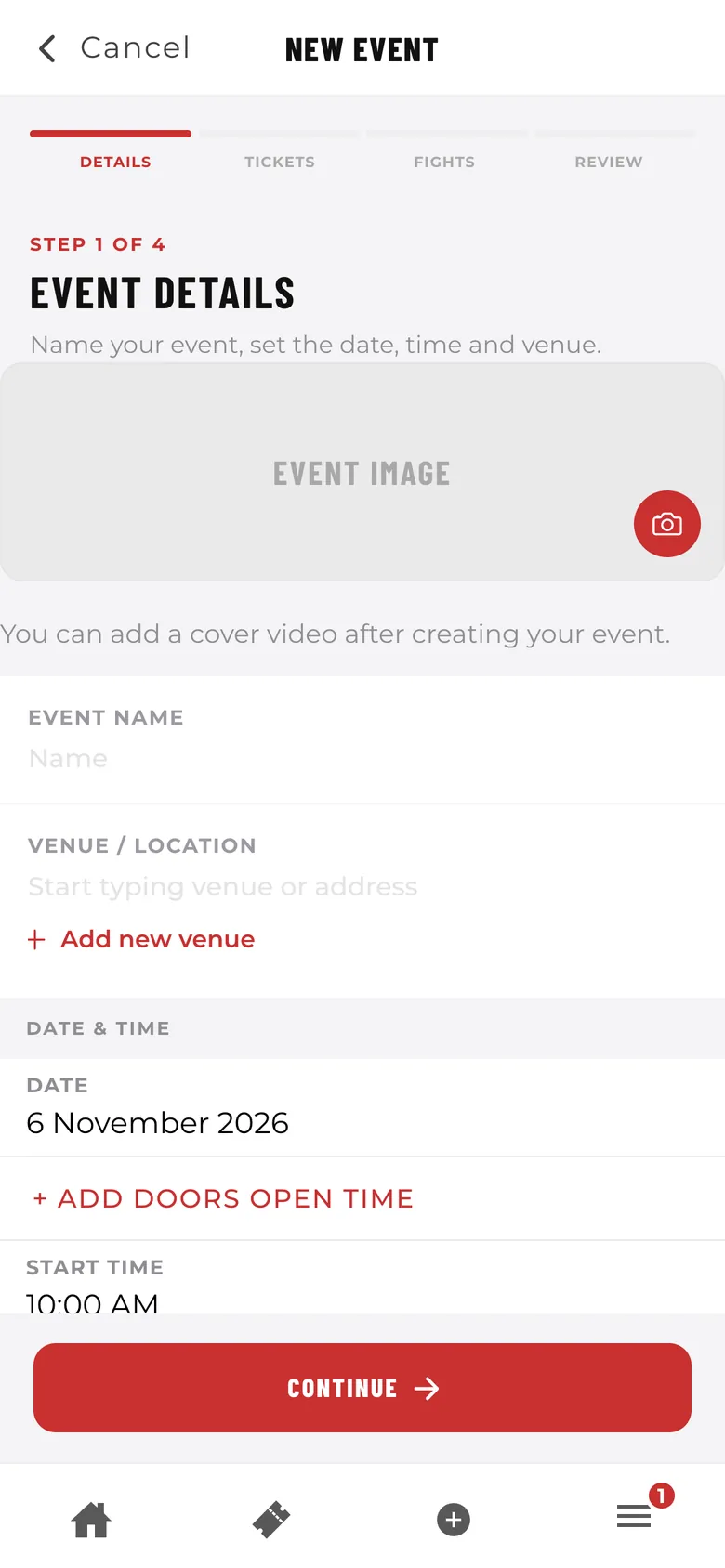
From your events list, start a new event. You need four things: a name, an image, a venue and a start time. Everything else can wait.

The New Event screen with image, name, venue and date fields
  • Nobody can buy until you publish, so take your time on the card and tickets.

Build the fight card

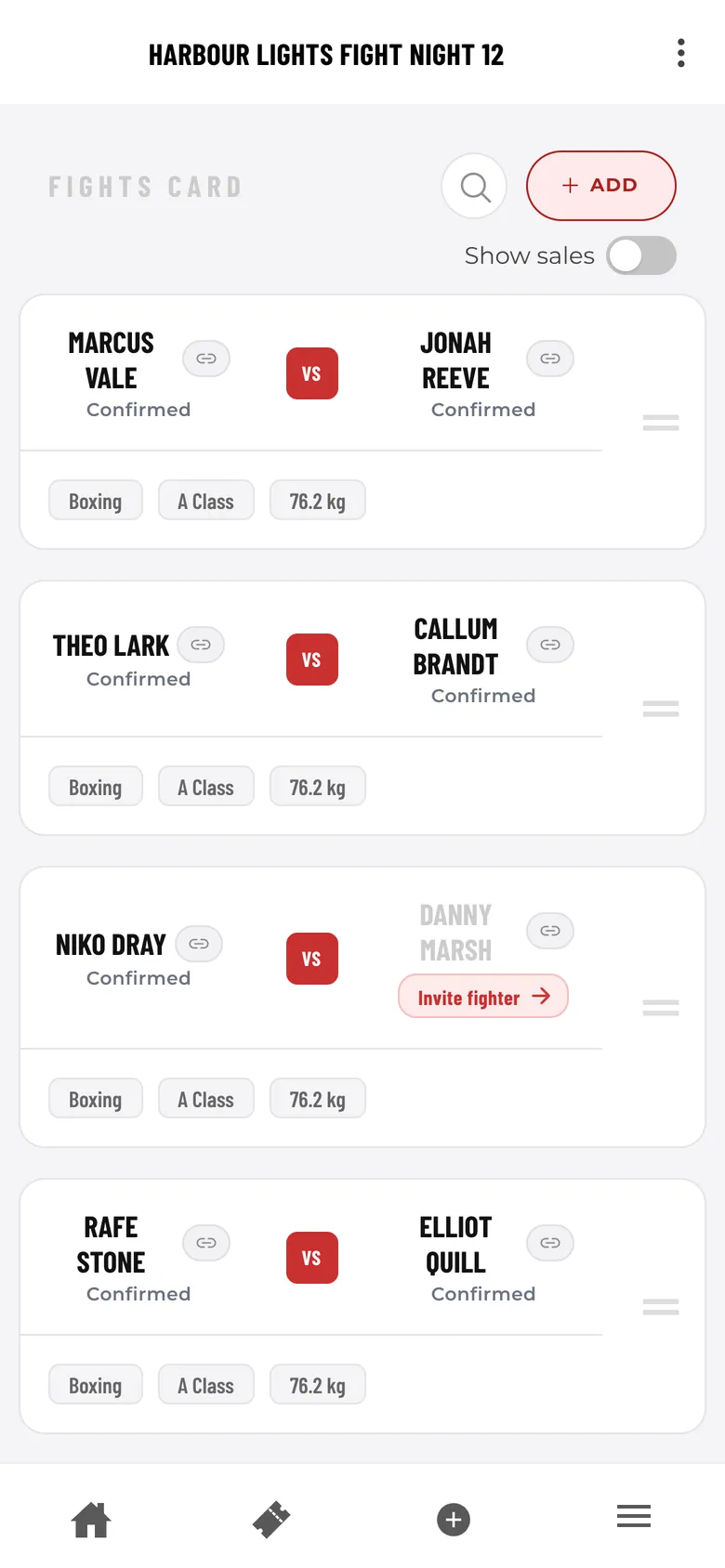
Add fights by searching for a fighter on BOKST. If they aren't on it yet, type their name and you've got a placeholder spot, so the card can go out before everyone has signed up.

A fight card with four bouts and a placeholder spot showing Invite fighter
  • Tap a fight and turn on Min. tickets sold to set a target. It's all or nothing: hit it and the fighter earns commission on their sales, miss it and they earn none for that event and that money comes to you after the show. A ticket for two counts as two.

  • Only named spots can be claimed. A default like Fighter 1A can't be.

More detail
  • Commission can be a percentage per fight or fighter, or a fixed amount per ticket.
  • A target set on one fighter takes priority over the one set on the fight.
  • A placeholder doesn't earn commission, so anything sold against that spot stays with you until a real fighter takes it.

Set up your tickets

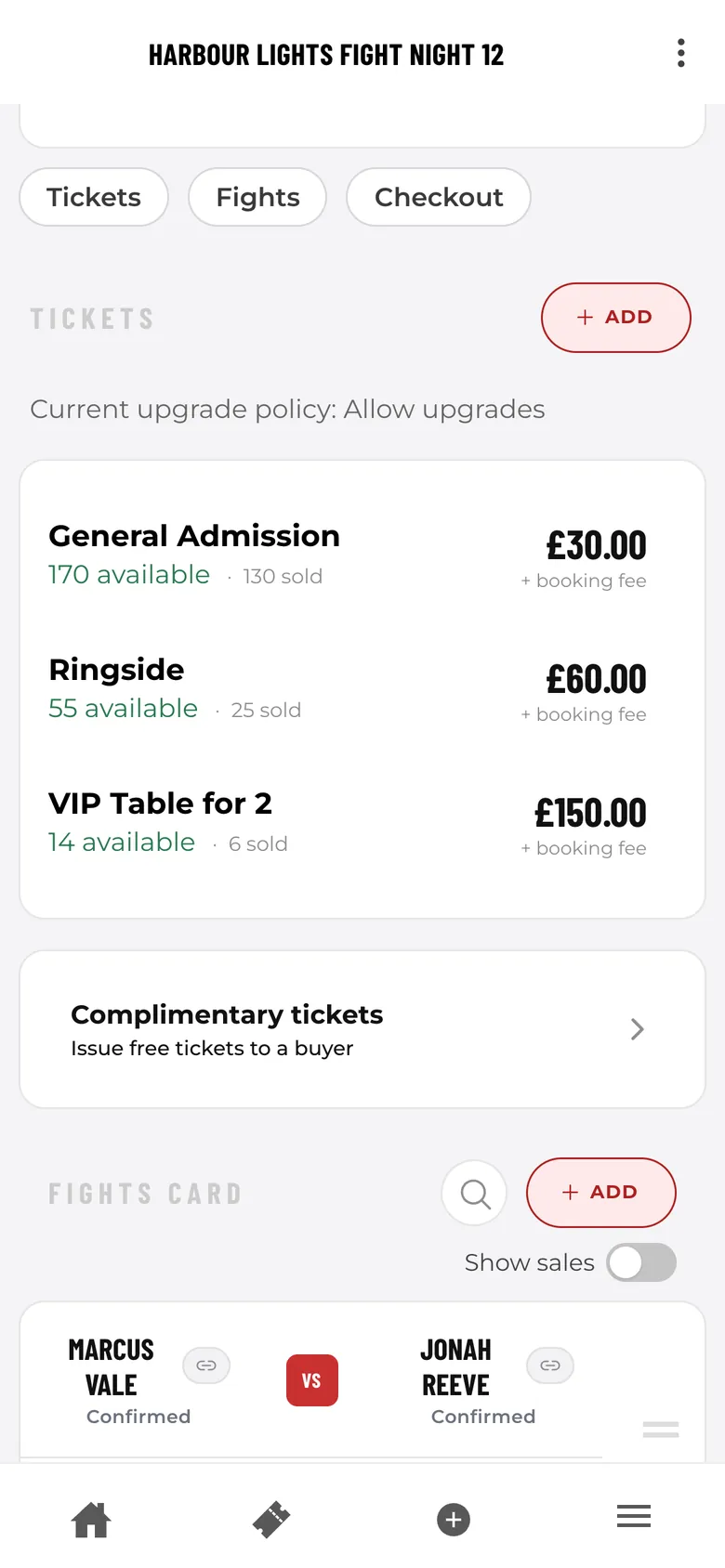
Add a ticket type for each part of the room, with a name, a price and how many you've got. A table for two is one ticket that admits two people.

Three ticket types with prices, availability and sales so far
  • Off by default. Tap Edit on your event and set Ticket upgrade availability to Allow upgrades or Until event start. Buyers pay the difference plus the booking fee on it. Seated tickets can't be upgraded.

  • For sponsors, press and guests. Issue them from the event page once it's live, with no fee and no commission. Non-seated events only.

  • Open the Checkout tab on your event and copy the widget snippet into your site. Fans can then buy without leaving it.

More detail
  • BOKST emails buyers about upgrades 5 days out, 2 days out and on the day.
  • You can switch a ticket type off from its settings.

Bring your fighters on board

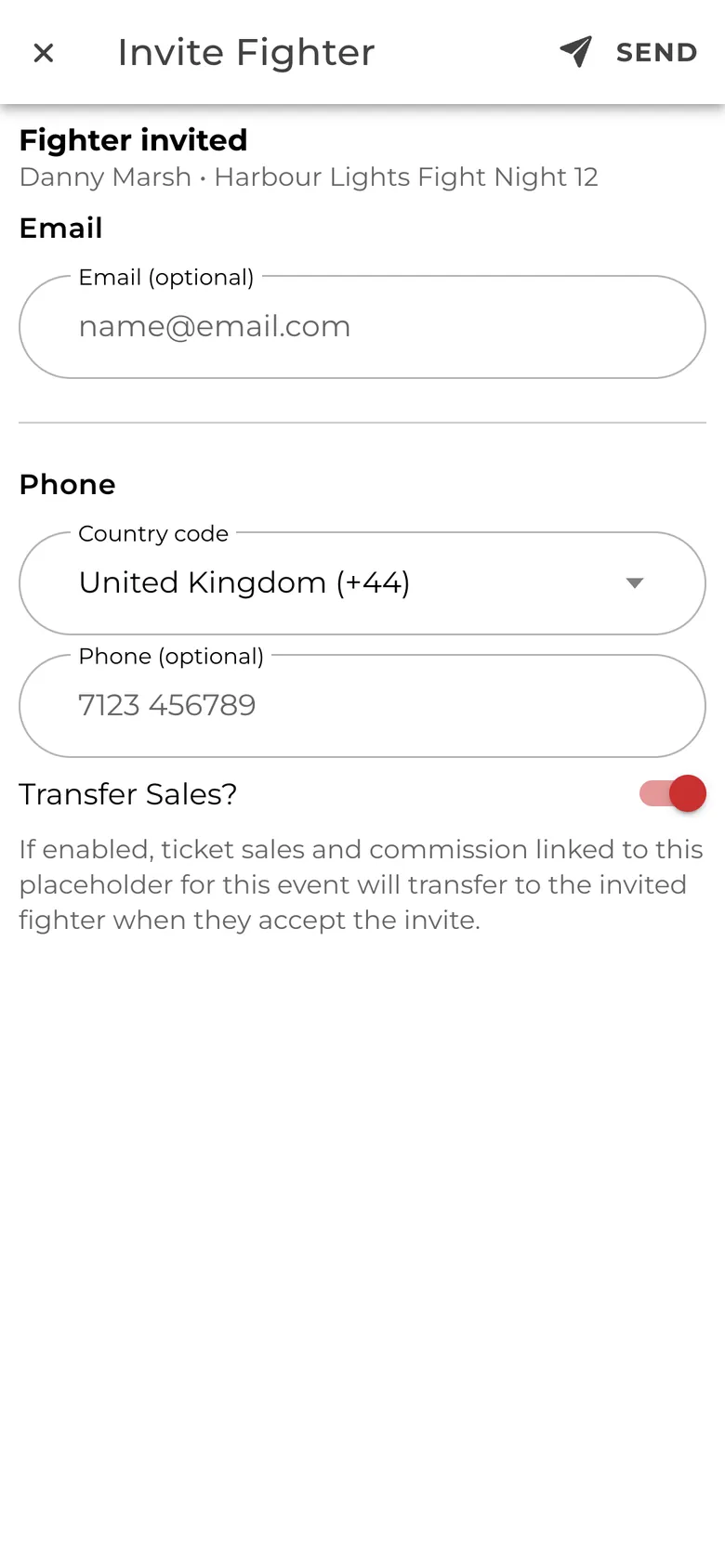
Not everyone on your card will be on BOKST yet. On a placeholder spot, tap Invite fighter, enter their email and send it.

The Invite Fighter screen with email, phone and a Transfer Sales toggle
  • Keep Transfer Sales? on and any sales and commission on that spot move to them when they accept. Invite links last 14 days, and you can copy the link once it's sent.

  • Once your event is live, a fighter can tap a named placeholder on the public fight card and claim it. They need a verified email, and nothing changes until you accept.

  • You'll get an email, and the request appears under Requests. Check it's really them first, because Accept can't be undone. Unanswered requests expire after 14 days.

Go live and watch sales

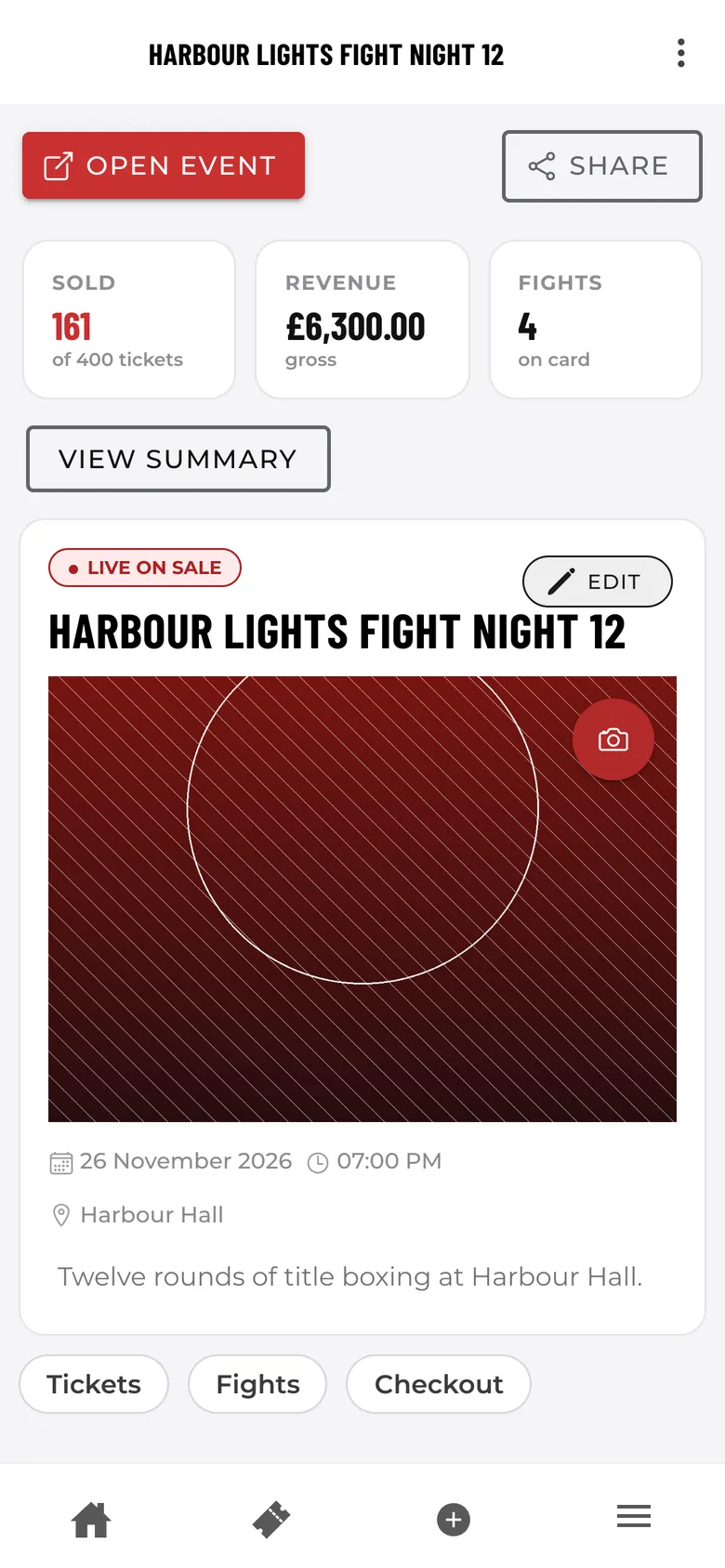
Choose Publish from the menu on your event page and it's on sale. Your event page shows tickets sold and revenue at a glance, and Ticket sales has the full picture, by ticket or by fighter.

A live event page showing 161 tickets sold and £6,300 revenue
  • BOKST emails you a sales update on Monday mornings in any week your live event has sold tickets.

More detail
  • An event with no tickets on it can still be published, but nobody can buy. Check your tickets are on first.

Your event page

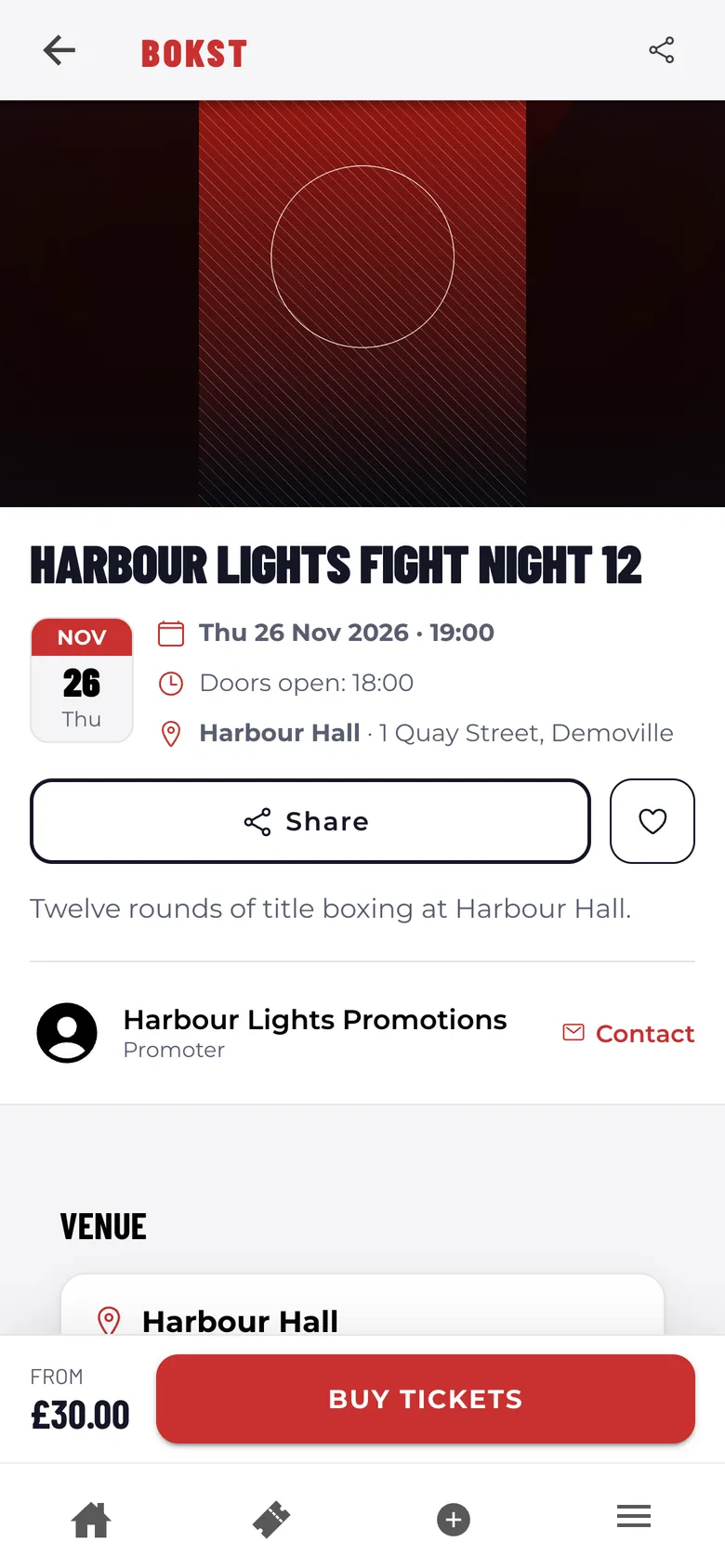
This is what fans see: the date, the venue, doors, the fight card and a Buy tickets button that stays on screen. It's one link you can share anywhere.

A public event page with date, venue and a Buy tickets button
  • Fans can see every bout and each fighter's record. A placeholder shows as Not signed up yet until the fighter joins.

Buying a ticket

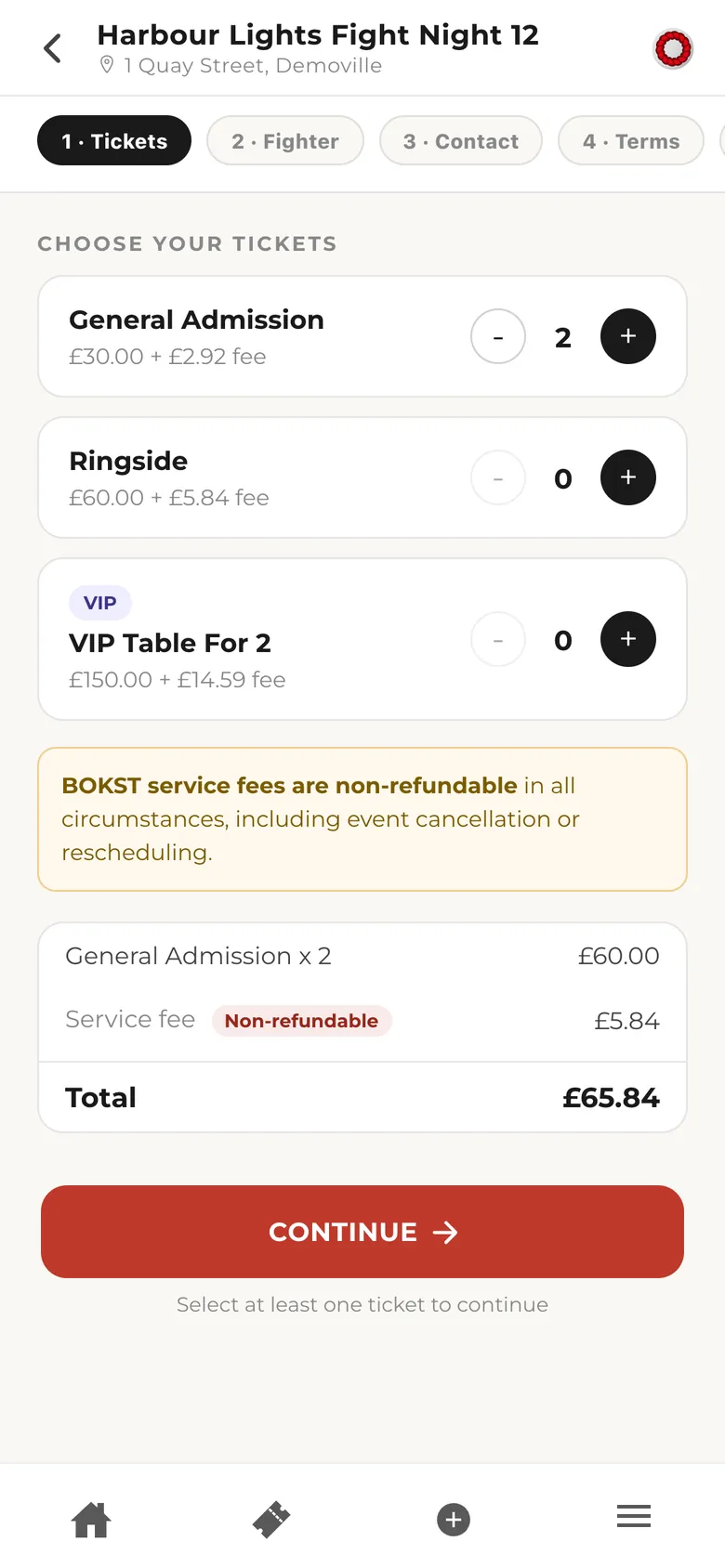
Fans pick their tickets and see the total, fee included, before going any further. Then it's fighter, contact, terms and payment.

Choosing two tickets, with the price, service fee and total shown
  • Fans enter a name and email and their tickets are emailed to them. Creating a BOKST account is optional.

  • Fans can pick a fighter to support, or skip it. It doesn't change the price.

Fighters sell and track

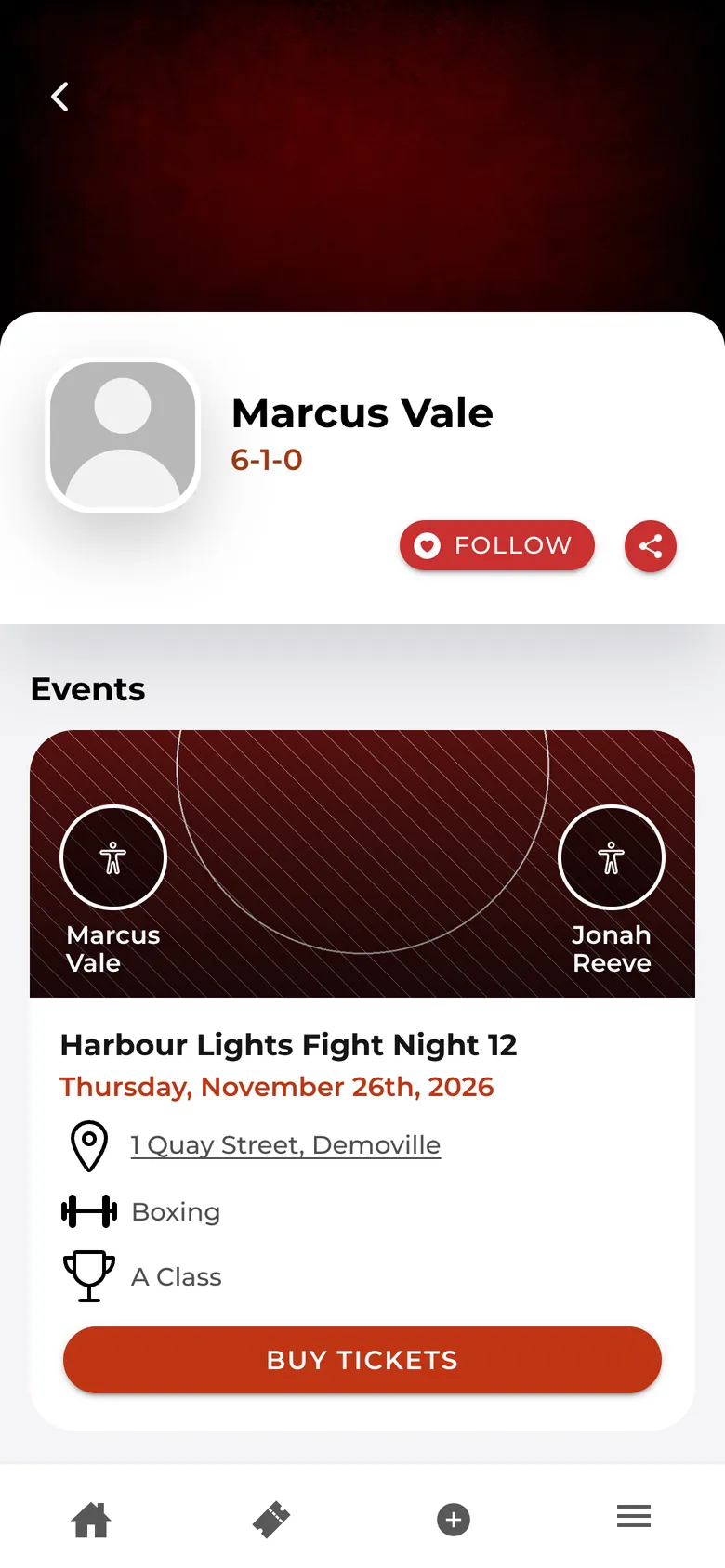
Every fighter has a profile with their record, their upcoming fights and a share button. Fans who tap Buy tickets there are credited to that fighter automatically.

A fighter profile with their record, next event and a Buy tickets button
  • Buy from a fighter's profile and they're already selected at checkout, so the sale counts without the fan doing anything.

  • Earnings shows a fighter their tickets sold, what they've earned and who bought from them.

  • Fighters can watch their progress against the target, and what they'll earn if they hit it.

Run the door

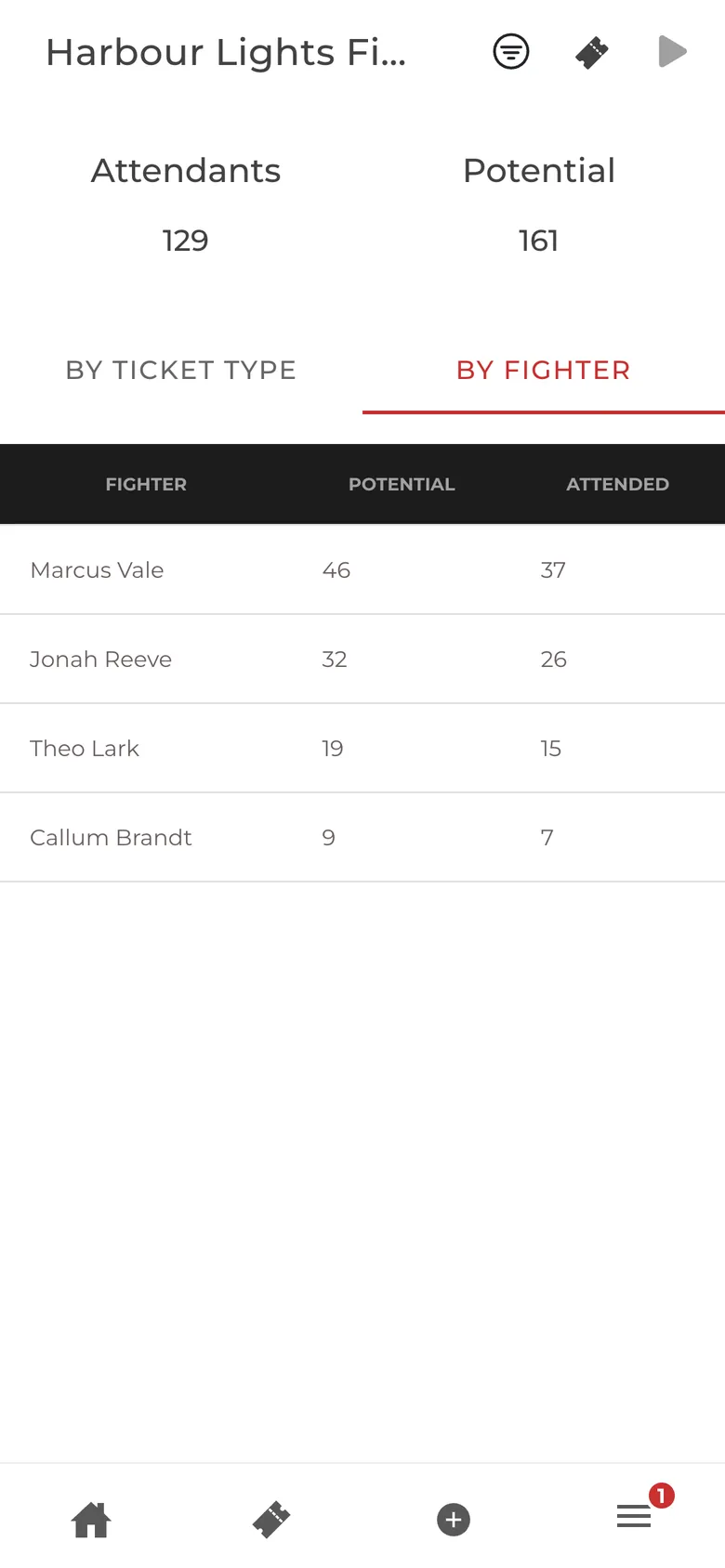
On fight night, open Entry Zone in the BOKST app and scan each ticket with your phone camera. You'll see who has come in, by ticket type or by fighter.

Entry Zone showing attendants against potential, by fighter
  • Open the menu on your event, choose User Access and add each person by email. They need a BOKST account already, and they get scanning access for that event only.

  • Scanning needs the BOKST mobile app and a connection, so test it in the venue before doors open. If a scan won't work, you can search for the ticket and check it in by hand.

  • After the show, open each fight and tap Assign winner, or Set as draw. Fight records update immediately.

More detail
  • Scanning opens once the event is live.
  • Results can be entered once the event has started.

Read your reports

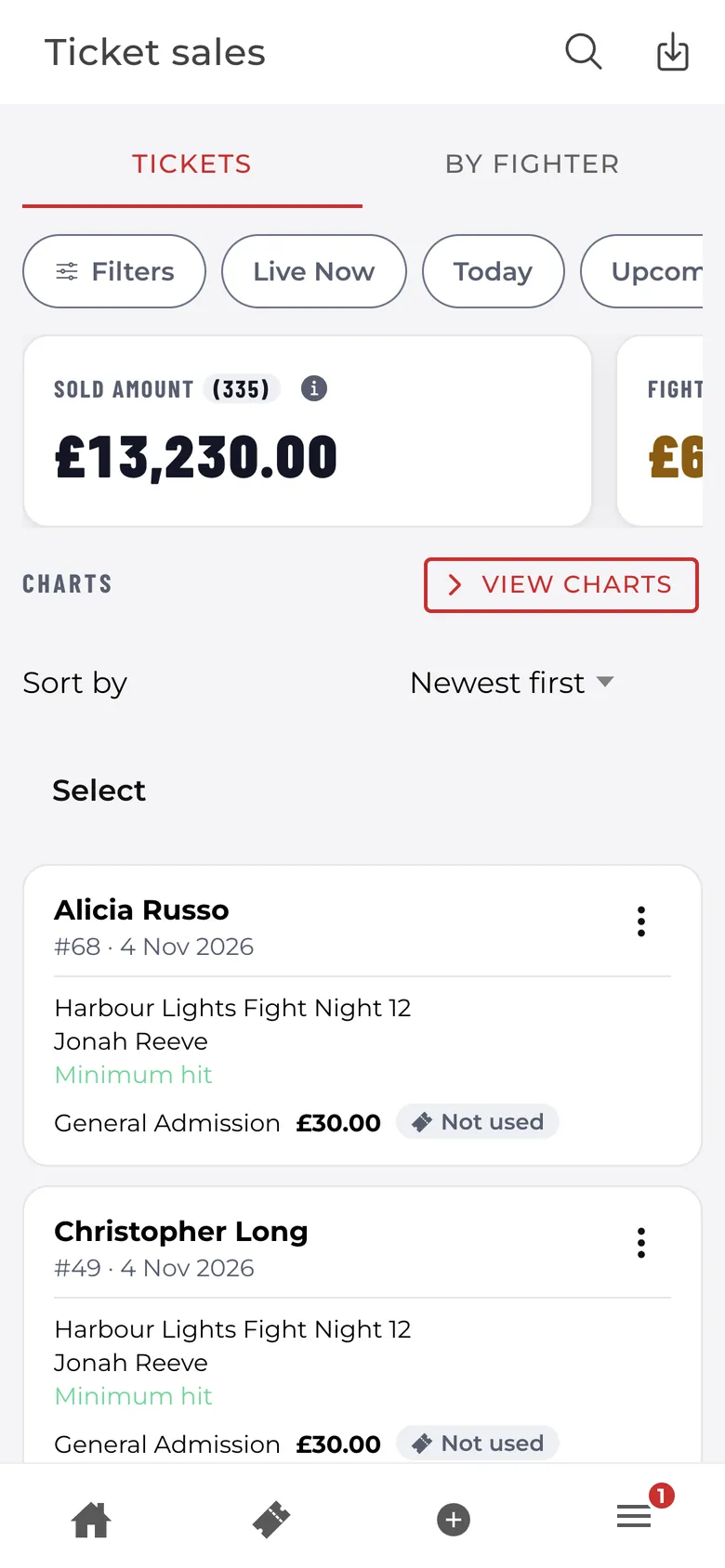
Ticket sales is your report across all your events: what you've sold, what fighters have earned and what you've made, down to each ticket.

The Ticket Sales report with sold amount and filter chips
  • Tap Live Now, Today, Upcoming or Past to pick your events, or Not Checked In, Checked In or Refunded to pick your tickets.

  • Tap Filters to search by date, event status, event, ticket type or fighter.

  • Tap Checked In to list every ticket used on the door. Each ticket shows Not used or Used once.

  • View charts gives you revenue and tickets over time, sales by ticket type, sales and commission by fighter, and a check-in funnel.

  • Switch to By fighter to see each fighter's tickets, check-ins, refunds, gross sales, commission and your revenue.

  • Tap Fighter Below Minimum to see who needs a nudge, and exactly how many more tickets they need.

More detail
  • The download icon at the top exports your report as a CSV.

Get paid

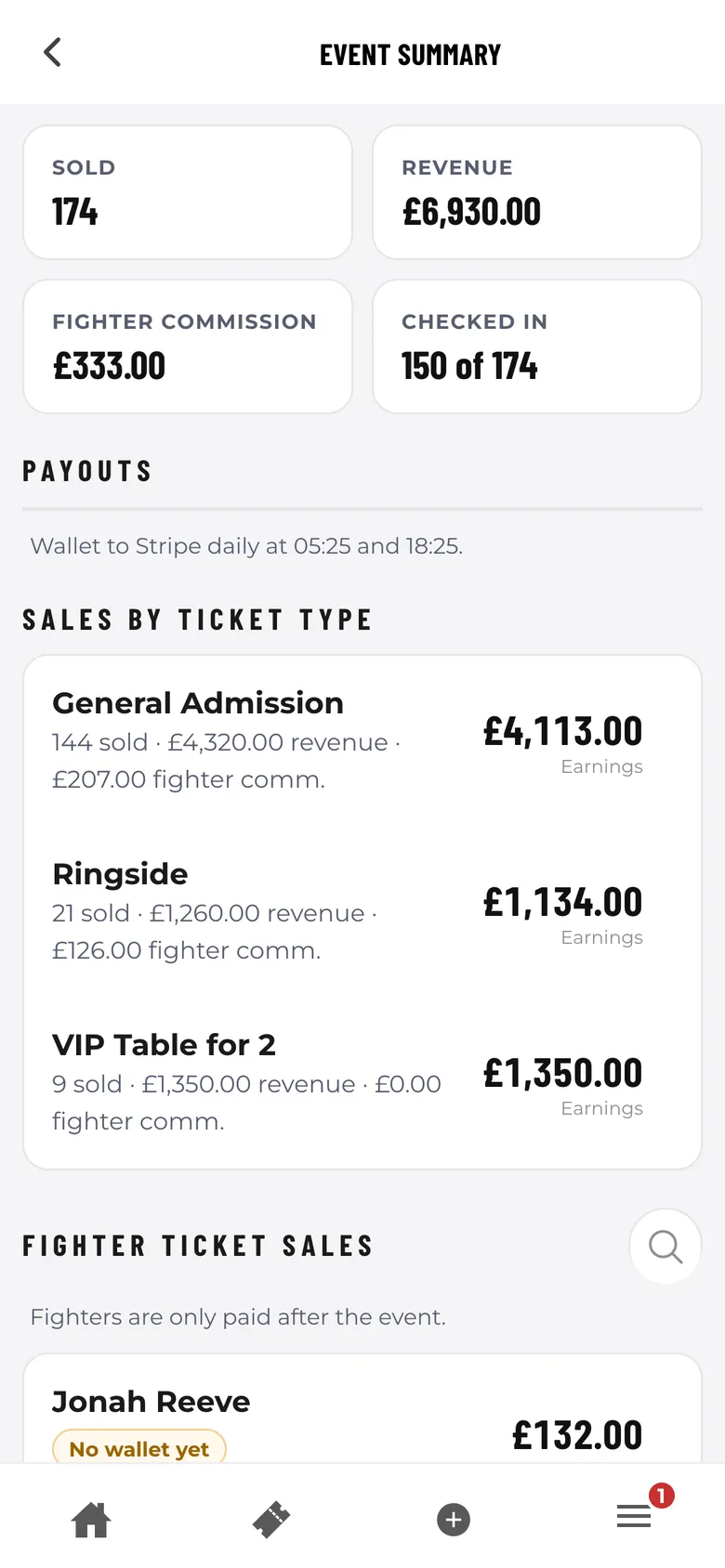
Net revenue from 100% of sales to date settles 7 days before the event, with a 1 working day payout. The rest is paid the next working day after the event. You don't need to request anything.

The Event Summary with sold, revenue, fighter commission and payouts
  • Tap View summary on your event for sales, revenue, fighter commission and weekly sales charts. Download PDF gives you a copy for your records.

More detail
  • You can refund a single ticket in full from Ticket sales. Once that money has gone out to Stripe, BOKST handles the refund for you.